Browser Workspace
Homepage → Settings → Database tab and select your directory.
You can access to the Browser workspace from the Home page, with Ctrl+Space or the "Quick access menu" to manage your database and import data from your file system.
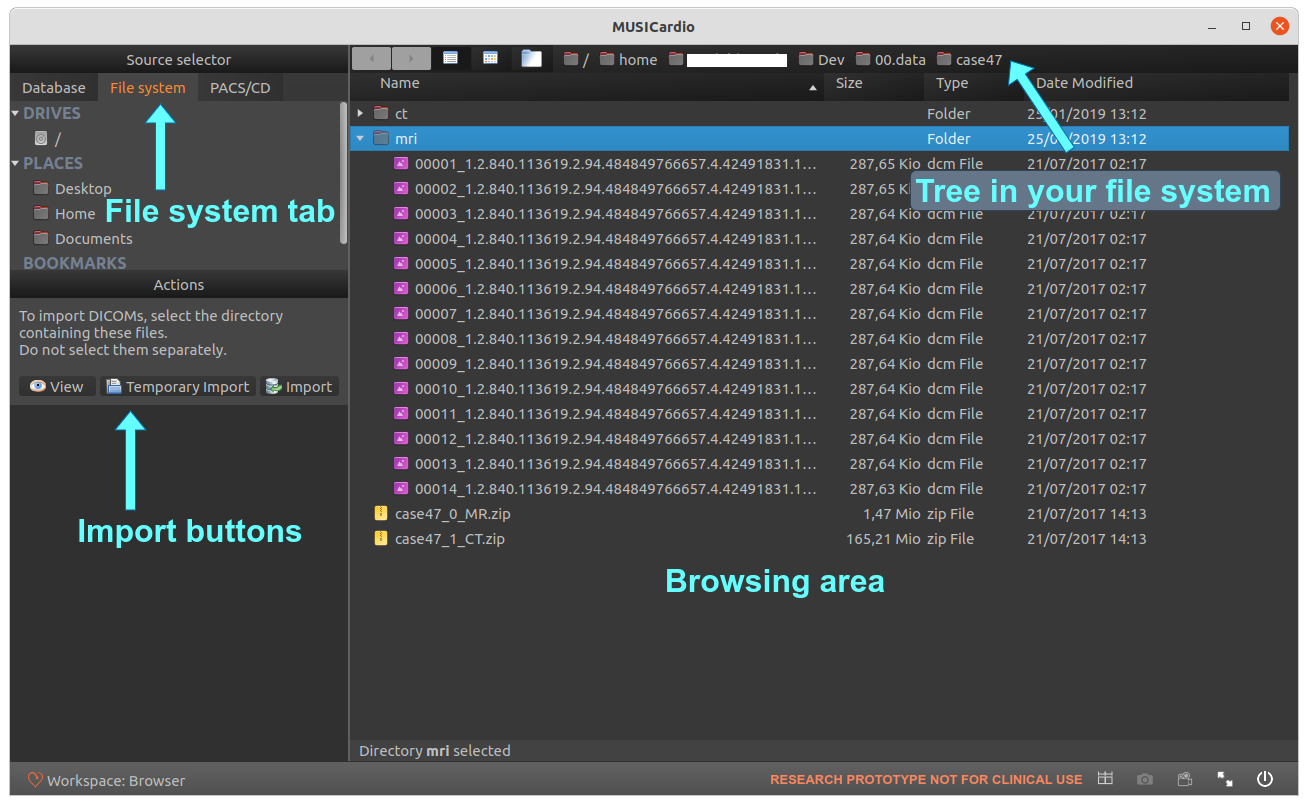
Browse your file system to find the data to import
Browse the file tree of your computer to display the data you want to import:
- Directly in the browsing area.
- Or, with the current tree location above the browsing area.
- Or, with the file tree just under the "File system" tab.
You can bookmark directories right-clicking on them in the Browsing area, and chose "Bookmark". They are displayed in the panel under the "File system" tab.
Import data
Select one or more data that you want to import. If you want to import a DICOM, you need to select the
DICOM directory.
Then choose an import button or right-click on the data:
- View: temporary import the data, then switch to the Visualization workspace and display it.
- Temporary Import: the selected data is loaded into a temporary database. If the application is closed with saving it, it will be lost. Temporary data is shown in italics in the database.
- Import: the selected data are copied into your application local database. The data will be available the next time you open the application, even if the original file has been removed.
In the Database tab of the Browser workspace, or in any imagery workspace database column, you can permanently save a temporary data right-clicking on the data and chosing "Save".
Supported formats
MUSICardio can import/export:
- ITK supported file format: DICOM, VTK, mha, NIFTI, GDCM, GIPL, Nrrd, GIS, etc.
- VTK meshes with metadata from field data.
- Export VTK meshes for BioSense Carto, Abbott Laboratories NavX and RHYTHMIA HDx Boston Scientific mapping systems.
- Import EP maps from BioSense Carto and RHYTHMIA HDx Boston Scientific mapping systems.
- Scenes: xml describing a view and export of each layer of this view.
- JPEG, BMP (2D), TIFF (2D).