Homepage
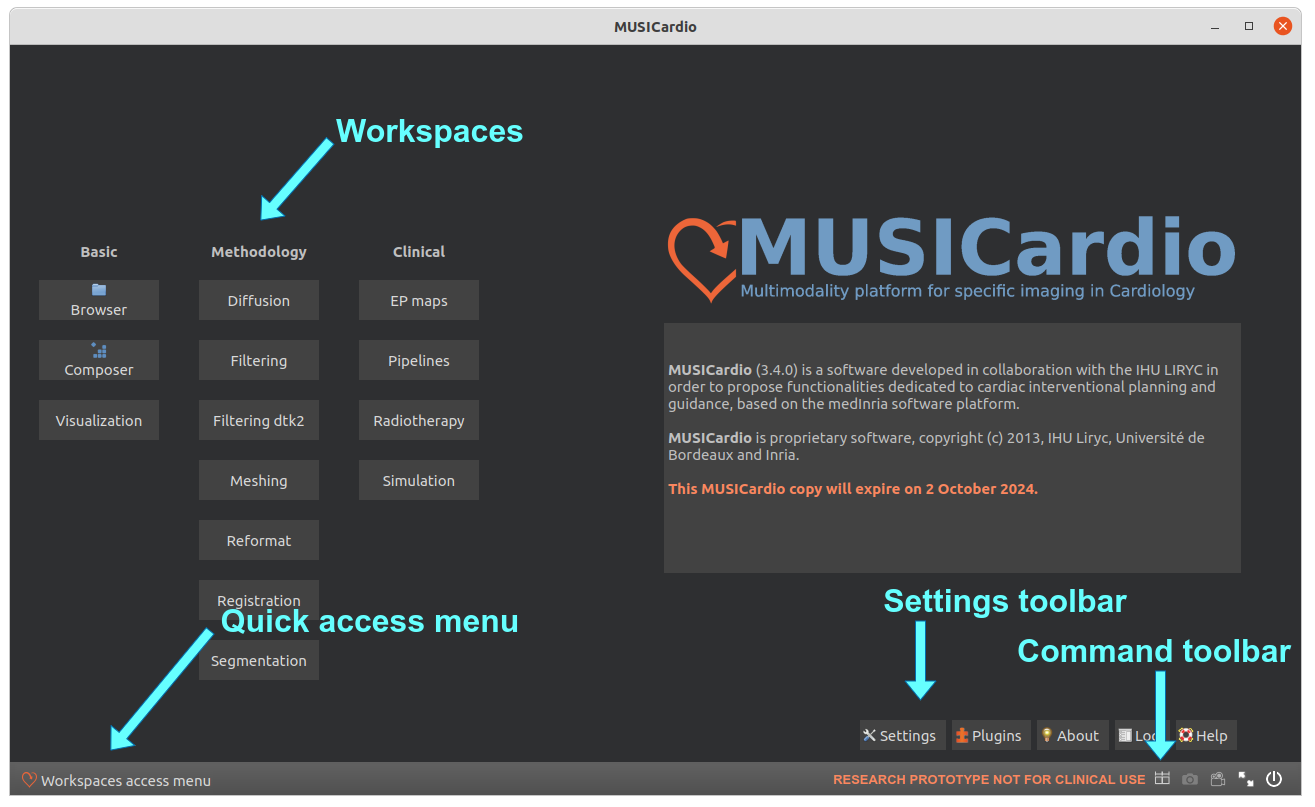
Workspaces are separated into several types:
- Basic (non imagery workspaces)
- Methodology (by type of imagery processing)
- Clinical (by type of imagery clinical use)
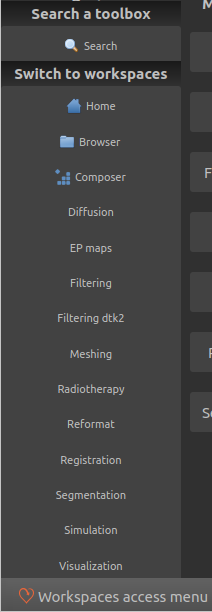
The "Quick access menu" allows to switch between workspaces or run the Search
tool.
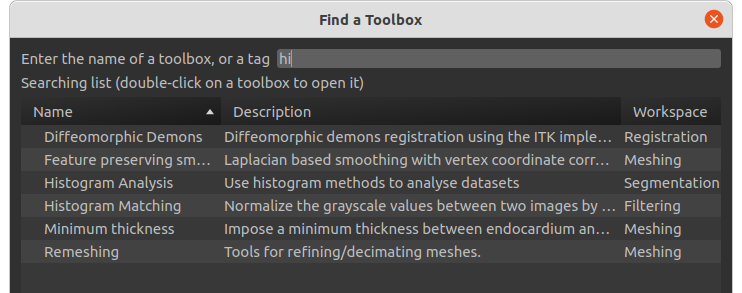
You can click on the Search button to search a specific toolbox in the
application.
Just enter the name you're looking for and double-click on the chosen item. The
targeted toolbox is going to be opened:

Displayed everywhere in the application the bottom toolbar allows to:
- Adjust views size
- Take a screenshot of the views
- Export a video of the views
- Fullscreen mode
- Close the application
Export a screenshot of your views
Click on the screenshot button to export your current view.
If you want to export multiple views at the same time,
Ctrl+click on the unselected view (to get a select border around it), then use the screenshot button.
Export a video of your views
You can export a video of your current view.
Your video frame steps could be based on the time of your original 4D data,
or by a rotation of your mesh, or based on the slices of your 3D data.
You can export a batch of JPEG, or OGV videos. OGV format is free and opensource and can be opened in several tools.
If needed you can convert OGV videos to MPEG4 for instance with
Handbrake
tool which is compatible with linux, macOS and Windows.
Settings toolbar

- Settings: choose start up, pipeline and database settings. The changes are effective after saving.
- Plugins: gives a detailed view of which plugins were successfully loaded and which weren't.
- About: a short summary of MUSICardio and its contributors, the licenses and release notes.
- Log: opens a tool to display the logs of the application. Can be useful for debug.
- Help: a link to the online User Manual.
Settings button
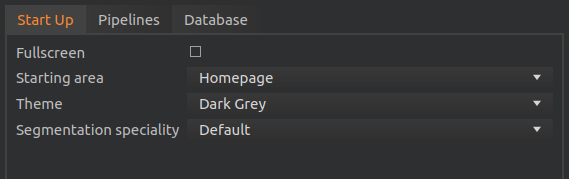
The "Start Up" tab of the Settings button allows to customize your application. You can choose the behavior at launch: fullscreen or not, which workspace is displayed, the application theme, and your segmentation speciality.
The "Pipelines" tab allows to change the Python module directory and switch to developer mode.
To move your database, just copy your folder at a new location (it must contain the db file). Then modify the Database location accordingly in the "Database" tab in Settings.